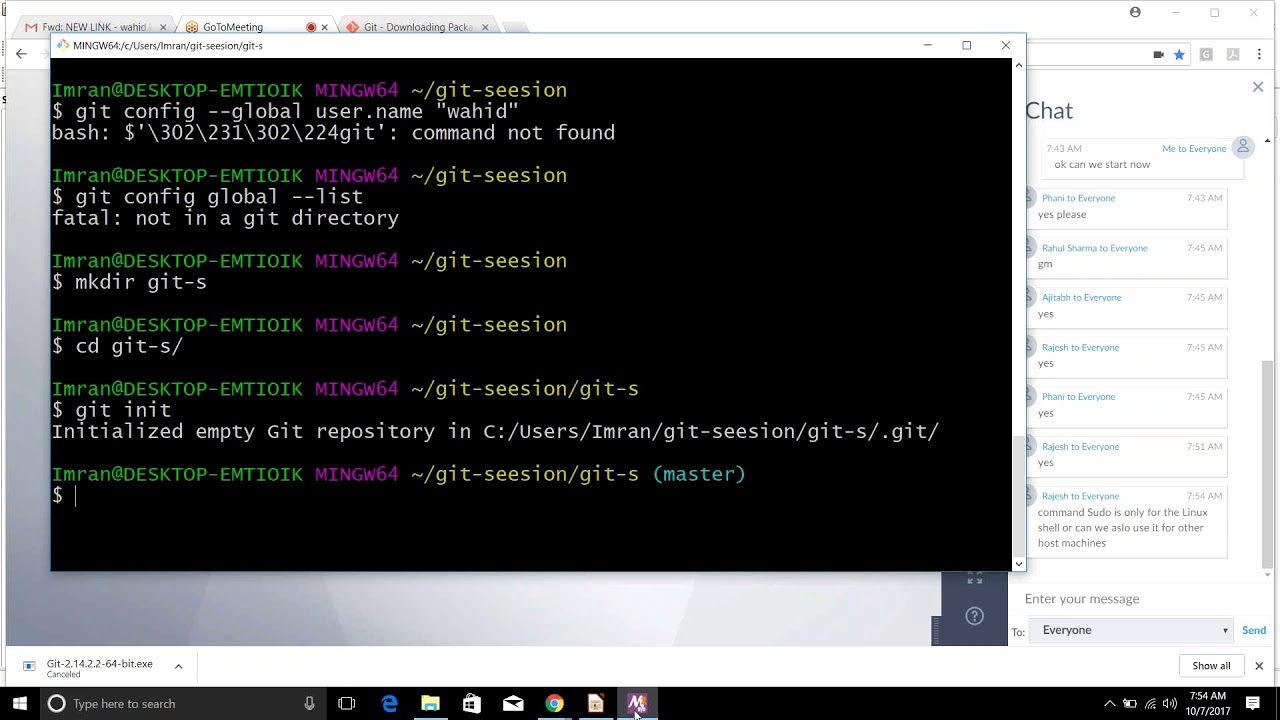
GIT Part2 DEVOPS ONLINE TRAINING
July 14, 2026 — LiveStream
🛒 Recommended gear on AmazonDisclosure: some links above are affiliate links — if you buy through them I may earn a small commission at no extra cost to you. Thanks for supporting the channel!
As an Amazon Associate I earn from qualifying purchases.
Welcome, fellow engineers! In the fast-paced world of modern software development, especially within a robust DevOps ecosystem, mastering Git is not just a skill, it's a superpower. If you’ve already grasped the fundamentals of tracking changes and committing code, then this GIT Part2 DEVOPS ONLINE TRAINING is your next crucial step to becoming a true Git maestro. We're diving deep beyond the basics of git add and git commit to explore advanced workflows, essential for seamless collaboration, maintaining clean history, and ensuring the integrity of your codebases in any development pipeline.
Think of it like this: you've learned to drive a car (git clone, git commit). Now, we’re going to teach you how to navigate complex city traffic, perform advanced maneuvers, and even do some light repairs on the fly. This isn't just about memorizing commands; it's about understanding the underlying philosophy of Git and how to leverage its power to solve real-world problems. So, grab your chai, settle in, and let's open up the next level of Git expertise for your DevOps journey.
Branching Out: Strategies for Collaborative DevOps
In a team environment, especially in DevOps, development isn't linear. Multiple features are being built, bugs are being fixed, and releases are being prepared concurrently. This is where Git branching strategies become absolutely critical. Branches in Git allow you to isolate development work, experiment safely, and integrate changes back into the main codebase without disrupting ongoing efforts. It’s like having multiple parallel universes for your code, merging them only when needed.
Understanding Core Branching Concepts
git branch: Use this to list, create, or delete branches. Dekho, git branch --list shows you all local branches. To create a new feature branch, it’s git branch feature/my-new-feature.git checkout / git switch: To move between branches. While git checkout is still widely used, git switch (introduced in Git 2.23) provides a clearer separation of concerns for switching branches versus restoring files. So, git switch feature/my-new-feature is your friend here. Want to create and switch in one go? git switch -c feature/my-awesome-feature.git merge: The primary way to integrate changes from one branch into another. We'll deep dive into this shortly.
Popular Git Branching Strategies
While Git provides the tools, the "how" you use them is your strategy. For DevOps online training, understanding these common workflows is paramount:
Git Flow
A highly structured branching model, often preferred for projects with strict release cycles and long-term support. It defines five types of branches:
master (or main): Represents production-ready code. Only hotfixes and releases merge directly into this.develop: Integrates all accepted feature branches for the next release.feature/*: Created from develop for new features. Merged back into develop.release/*: Branches off develop for release preparation (bug fixes, last-minute changes). Merged into both master and develop.hotfix/*: Branches off master for urgent production bug fixes. Merged into both master and develop.
Pros: Very clear structure, excellent for managing multiple releases simultaneously.
Cons: Can be complex for smaller teams or projects with continuous delivery. Requires discipline.
GitHub Flow
A simpler, more lightweight model, ideal for continuous delivery and deployment. It revolves around a single main branch and short-lived feature branches:
main (or master): Always deployable.feature/*: Created off main for any new work. Once complete, tested, and reviewed, it's merged back into main and deployed immediately.
Workflow:
- Create a descriptive branch off
main.
- Commit changes regularly to your feature branch.
- Open a Pull Request (PR) to
main.
- Review code, get feedback, iterate.
- Merge into
main and deploy!
Pros: Simple, fast, promotes continuous integration and deployment. Great for agile teams.
Cons: Less structure for very complex release schedules, relies heavily on good test coverage.
GitLab Flow
An evolution of GitHub Flow, adding environment branches (like production, staging, pre-production) to manage deployments to various environments more explicitly. It bridges the gap between the simplicity of GitHub Flow and the structure of Git Flow. You still work on feature branches that merge into a main integration branch (e.g., development), which then gets merged into environment-specific branches for deployment.
Pros: Flexible, good for regulated environments, integrates well with CI/CD pipelines.
Cons: Can add complexity if not carefully managed.
Choosing the right strategy depends on your team size, project complexity, and release cadence. The key is consistency. Once you pick one, stick to it!
For more foundational knowledge on Git, check out our Git Part 1 guide.
The Merge-Rebase Conundrum: Keeping Your History Clean
This is a topic that often confuses juniors and even some seniors. When you want to integrate changes from one branch into another, Git offers two primary commands: git merge and git rebase. Both achieve integration, but their approach and impact on your commit history are fundamentally different. Understanding this distinction is crucial for effective Git DevOps practices.
git merge: The Integrator
git merge takes the changes from one branch and combines them into another, creating a new "merge commit" in the process. This merge commit has two parent commits, representing the point where the two histories converged.
How it works:
- You are on your target branch (e.g.,
main).
- You want to bring in changes from another branch (e.g.,
feature/new-login).
- You run
git merge feature/new-login.
Git will try to automatically combine the changes. If there are conflicting modifications to the same lines of code, Git will pause the merge and ask you to resolve the merge conflicts manually.
Advantages:
- Non-destructive: It preserves the exact history of commits, showing exactly when and where a branch was integrated. This can be useful for auditing.
- Simple: Generally easier to understand for beginners.
- Good for public/shared branches: You typically merge into long-lived public branches like
main or develop.
Disadvantages:
- Cluttered history: If you merge frequently, your commit history can become a tangle of merge commits, often called "octopus merges," which can be hard to read and follow.
git rebase: The History Rewriter
git rebase, on the other hand, rewrites your commit history. It essentially "moves" your feature branch to start from the tip of another branch, applying your feature branch's commits one by one on top of the target branch's latest state. It creates a linear history.
How it works:
- You are on your feature branch (e.g.,
feature/new-login).
- You want to update it with the latest changes from the target branch (e.g.,
main) and apply your changes on top.
- You run
git rebase main.
Git will temporarily un-apply your commits, update your branch to the latest main, and then re-apply your commits one by one. If any of your commits conflict with main, Git will stop at each conflicting commit and ask you to resolve the conflict.
Advantages:
- Clean, linear history: This is the biggest draw. Your project history looks like a straight line, making it much easier to follow, understand, and use commands like
git bisect.
- Eliminates merge commits: No extra merge commits cluttering the log.
- Good for private branches: Often used to keep feature branches up-to-date with
main before merging, or to squash/reorder commits locally.
Disadvantages:
- Rewrites history: This is the golden rule, beta! Never rebase a shared, public branch. If you rebase a branch that others have already pulled, you will rewrite history, causing headaches and potentially data loss for your teammates. Always rebase your *private* feature branches.
- More complex conflict resolution: You might resolve the same conflict multiple times if multiple commits on your branch touch the same lines.
When to Use Which? The DevOps Perspective
- Use
git merge when:
- You're integrating a completed feature branch into a long-lived shared branch (like
main or develop).
- You want to preserve the exact historical context of when branches diverged and converged.
- Your team prefers explicit merge commits for tracking integrations.
- Use
git rebase when:
- You're working on a *private* feature branch and want to keep it updated with the latest changes from
main before opening a Pull Request. This makes your PR cleaner and easier to review.
- You want to clean up your local commit history (e.g., squash multiple small commits into one logical commit, reorder commits) before pushing to a remote or creating a PR. Use
git rebase -i HEAD~N for interactive rebasing.
- You desire a perfectly linear project history.
For most DevOps online training scenarios, the common practice is: rebase your *private* feature branches to keep them current with the main branch, and then merge them (or use a squashed merge via a Pull Request) into the main branch. This gives you the best of both worlds: clean feature branches and a traceable main history.
When resolving conflicts, remember to use git status to see conflicting files, edit them manually, then git add , and finally git commit for a merge or git rebase --continue for a rebase. If things get messy, git merge --abort or git rebase --abort are your lifelines, allowing you to back out to the state before the operation.
Advanced Git Operations for the DevOps Professional
As a DevOps engineer, your Git interactions go beyond just adding and committing. You need to be agile, manage temporary changes, pinpoint specific commits, and sometimes even rewrite history safely. This section covers some power-user commands that are ekdum important for your daily grind.
git stash: The Temporary Shelf
Often, you're working on a feature, and suddenly an urgent bug report comes in, or you need to switch branches to check something quickly. But your current changes aren't ready to be committed. This is where git stash comes to your rescue.
git stash saves your modified tracked files and staged changes onto a stack of incomplete changes, and then reverts your working directory to the HEAD of your current branch. It’s like putting your work in a temporary locker.
git stash save "WIP: urgent bug fix on authentication" # Stash with a message
git stash list                                      # See your stashes
git stash apply                                     # Reapply the latest stash (keeps it in list)
git stash pop                                       # Reapply and remove the latest stash
git stash drop stash@{1}                            # Drop a specific stash
git stash clear                                     # Clear all stashes
DevOps Use Case: Rapid context switching. You can stash your work, switch to a hotfix branch, commit the fix, switch back, and then pop your stash to continue where you left off. Very handy!
git cherry-pick: Selective Commit Application
Sometimes you only need a *single* commit from one branch on another branch, not the entire branch's history. Maybe a small bug fix or a critical configuration change that needs to be fast-tracked to a release branch.
git cherry-pick applies the changes introduced by an existing commit from an arbitrary Git branch onto the branch you are currently on. It effectively recreates the commit on your current branch, giving it a new commit hash.
git log --oneline                                   # Find the commit hash you need
git switch release/v1.2                             # Switch to your target branch
git cherry-pick <commit-hash-from-other-branch>     # Apply the commit
DevOps Use Case: Applying critical fixes quickly across multiple active branches without full merges. Backporting a single feature or bug fix to an older release branch. However, use it judiciously, as cherry-picking can lead to duplicated commits if not managed carefully.
git revert: Undoing Safely
You've pushed a commit, and now you realize it introduced a bug. You can't just delete it if others have already pulled it (that would be rewriting shared history!). git revert is the safe way to undo a commit.
git revert creates a *new* commit that undoes the changes of a specified commit. It doesn't delete or rewrite history; it adds a new commit that reverses the effect of an old one.
git log --oneline                                   # Find the bad commit
git revert <bad-commit-hash>                        # Create a new commit that undoes it
DevOps Use Case: Correcting mistakes on shared branches. This is your go-to when you need to undo a problematic commit after it's already been pushed to a remote and possibly pulled by others.
git tag: Marking Milestones
Tags are like permanent bookmarks in your repository's history. They are typically used to mark release points (e.g., v1.0, v2.1.0) or significant milestones. Unlike branches, tags don't move.
There are two types of tags:
- Lightweight tags: Just a name pointing to a specific commit. Created with
git tag .
- Annotated tags: Stored as full Git objects, containing a message, tagger name, date, etc. Recommended for releases. Created with
git tag -a -m "Release message".
git tag -a v1.0 -m "Initial release of Project Alpha" # Create an annotated tag
git tag                                             # List tags
git show v1.0                                       # Show tag details
git push origin v1.0                                # Push a specific tag to remote
git push origin --tags                              # Push all tags to remote
DevOps Use Case: Marking official release versions, making it easy to check out an exact release or integrate with CI/CD systems for automated deployments.
git reflog: Your Git Safety Net
Lost a commit? Accidentally reset too far? Didn't push a branch and deleted it? Don't panic! git reflog is your local repository's safety net. It records every change to HEAD, effectively logging every time you've modified your local branches, commits, or other references.
git reflog
# Output looks like:
# HEAD@{0}: commit: Add new feature X
# HEAD@{1}: checkout: moving from feature/old to feature/new
# HEAD@{2}: commit: Fix minor bug
# HEAD@{3}: rebase -i (finish): ...
# HEAD@{4}: reset --hard: moving to HEAD~2
You can then use git reset --hard HEAD@{N} (or the specific commit hash from the reflog) to revert your repository to a previous state recorded in the reflog. This is a powerful command for recovering "lost" work locally. But remember, this is *local* history, not shared.
DevOps Use Case: Recovering from mistaken operations, finding lost commits, and generally being able to trace your local Git activity.
Remote Workflows and Collaboration Best Practices
No software project happens in isolation. In a DevOps online training context, understanding how to interact with remote repositories and collaborate effectively is just as important as knowing your commands.
Understanding Remote Interaction
git fetch: Downloads new objects and refs from another repository. It updates your *remote-tracking branches* (e.g., origin/main) but *doesn't* modify your local working branches. This is a safe way to see what's changed upstream.git pull: A convenience command that is essentially git fetch followed by git merge. It fetches changes from the remote and then integrates them into your current local branch.git push: Uploads local branch commits to the remote repository. git push origin sends your changes.git push --force (and why to avoid it): This command rewrites remote history. Only use it if you *know* what you're doing, you're absolutely sure no one else has pulled your old commits, and you've communicated clearly with your team. It can cause major headaches by creating divergent histories for others. Often, git push --force-with-lease is a safer alternative, which fails if the remote branch has been updated by someone else in the meantime.
Collaborative Workflow: Pull Requests (or Merge Requests)
The cornerstone of modern team collaboration in Git-based systems (GitHub, GitLab, Bitbucket). A Pull Request (PR) is a formal proposal to merge your feature branch into a target branch (e.g., main).
Steps:
- Create a feature branch locally (e.g.,
feature/login-page).
- Make your changes, commit them regularly, and push your branch to the remote:
git push -u origin feature/login-page.
- Go to your Git hosting platform (GitHub, GitLab), navigate to your repository, and create a new Pull Request from your feature branch to the target branch (usually
main).
- Code Review: Your teammates review your code, provide feedback, suggest changes. This is a critical part of quality assurance and knowledge sharing in DevOps.
- Address feedback, make more commits to your feature branch, and push them. The PR automatically updates.
- Once approved, the PR is merged into the target branch. Depending on your repository settings, this might be a simple merge, a squash merge (all feature branch commits combined into one), or a rebase merge.
Best Practices for PRs:
- Small, focused PRs: Easier to review, less chance of introducing bugs.
- Descriptive titles and descriptions: Explain *what* the PR does and *why*. Link to issues if possible.
- Self-review: Review your own code before submitting.
- Be responsive to feedback: It's about improving the code, not personal critique.
Commit Message Guidelines
Good commit messages are vital for understanding project history, debugging, and collaboration. They are like a narrative of your project's evolution.
- Subject Line (first line): Max 50-72 characters, imperative mood (e.g., "Add feature X", not "Added feature X"), capitalize the first letter, no period at the end.
- Blank Line: Follow the subject line with a blank line.
- Body (optional): Explain the *what* and *why* of the change. Why was this change necessary? What problem does it solve? What are the side effects or limitations?
Example:
feat: Implement user authentication module

This commit introduces a new user authentication module using JWT.
It includes:
- User registration endpoint (`/api/register`)
- User login endpoint (`/api/login`)
- Token generation and validation middleware
- Integration with existing database schema for user storage.

This addresses issue #123 and enhances system security by
enforcing user identity for protected routes.
.gitignore: Ignoring Unnecessary Files
Finally, a small but important utility: .gitignore. This file tells Git which files or directories to ignore and not track. This is essential for preventing build artifacts, IDE configuration files, temporary files, node_modules, and sensitive information from polluting your repository.
# Example .gitignore content
# Logs
*.log
npm-debug.log*

# Node modules
node_modules/

# IDE files
.idea/
.vscode/

# Build artifacts
dist/
build/
*.DS_Store
Keep your .gitignore in the root of your repository, and remember to commit it! It’s a foundational element of a clean repo, which is crucial for any efficient DevOps setup.
This advanced Git DevOps online training should give you a solid understanding of how to use Git more effectively and collaboratively. Mastery comes with practice, so keep experimenting with these commands on your local repos!
Key Takeaways
- Branching Strategies are Foundational: Choose a strategy like Git Flow, GitHub Flow, or GitLab Flow based on your project's needs to manage parallel development and releases effectively.
- Merge vs. Rebase: Understand the Impact on History: Use
git merge for integrating public, shared branches to preserve exact history; use git rebase on private, feature branches to maintain a clean, linear commit history before integrating. Never rebase a public branch!
- Leverage Advanced Commands for Agility: Commands like
git stash for context switching, git cherry-pick for selective changes, git revert for safe undo, and git tag for marking releases are indispensable for a DevOps engineer.
- Master Remote Interaction & Collaboration: Understand
git fetch, git pull, git push, and the importance of Pull/Merge Requests for team-based development, including code reviews and effective communication.
- Prioritize Cleanliness and Documentation: Well-crafted commit messages and a properly configured
.gitignore file significantly improve project maintainability, debuggability, and overall team efficiency.
Frequently Asked Questions
What is the primary difference between `git merge` and `git rebase`, and when should I use each in a DevOps context?
git merge integrates changes from one branch into another by creating a new merge commit, preserving the original branch history. It's generally used for integrating feature branches into shared, long-lived branches like main or develop. git rebase, conversely, rewrites history by moving your branch's commits to the tip of another branch, resulting in a linear history without merge commits. It's ideal for keeping your *private* feature branches up-to-date with the main branch and cleaning up your local commits *before* pushing or opening a pull request. The golden rule: never rebase a shared branch that others have already pulled.
How do Git branching strategies, such as Git Flow and GitHub Flow, influence CI/CD pipelines in DevOps?
Git branching strategies define how code flows through your repository, directly impacting your CI/CD pipeline. GitHub Flow, with its single main branch always ready for deployment, aligns perfectly with Continuous Delivery and Deployment, triggering deployments to production directly from main upon merge. Git Flow, with its distinct develop and master branches (and release/hotfix branches), supports more structured release cycles; CI/CD pipelines would typically build and test develop for continuous integration, deploy release branches to staging, and deploy master (or main) to production. The choice influences where and when your CI/CD triggers, what environments it deploys to, and how releases are managed.
When should I use `git stash`, and what are its main benefits in a fast-paced development environment?
You should use git stash when you have uncommitted changes in your working directory and want to temporarily save them to switch context to another task or branch, without making a formal commit. Its main benefits in a fast-paced DevOps environment are enabling rapid context switching (e.g., from a feature to an urgent bug fix), cleaning up your working directory before pulling or rebasing, and allowing you to save experimental changes without committing them to your branch history. It's an essential tool for maintaining fluidity and agility in your daily workflow.
Can I recover commits after using `git reset --hard` or deleting a branch?
Yes, absolutely! While git reset --hard seems destructive and deleting a branch seems permanent, Git's git reflog command is your local safety net. git reflog logs almost every change to your HEAD pointer, including commits, checkouts, merges, resets, and even branch deletions. You can examine the output of git reflog, find the SHA-1 hash of the commit you want to recover, and then use git reset --hard <commit-hash-from-reflog> to revert your working directory and branch pointer to that specific state. This is a local repository feature, so it cannot recover work that was never pushed to a remote.
Phew! That was quite the deep dive, wasn't it? Mastering these advanced Git concepts is crucial for any aspiring or current DevOps engineer. The more you practice and understand the nuances of these commands, the smoother your development workflow will become. For a visual and in-depth walkthrough of these topics, make sure to watch the full video on the @explorenystream YouTube channel. Don't forget to like the video, share it with your fellow engineers, and subscribe to the channel for more invaluable **DevOps online training** content. Your journey to becoming a Git guru continues!